Getting started
Welcome! So you decided to try Tilo—thanks!
What’s on your computer now?
Keep the current Linux system?
Which package system do you use?
What should happen to Windows?
Where should the complete system live?
Are the files you need safely backed up?
Before you begin
When the desktop opens
The virtual machine, desktop session, and complete system use the same desktop. Hardware access and responsibility for system settings still depend on the route you chose.
Finish first login
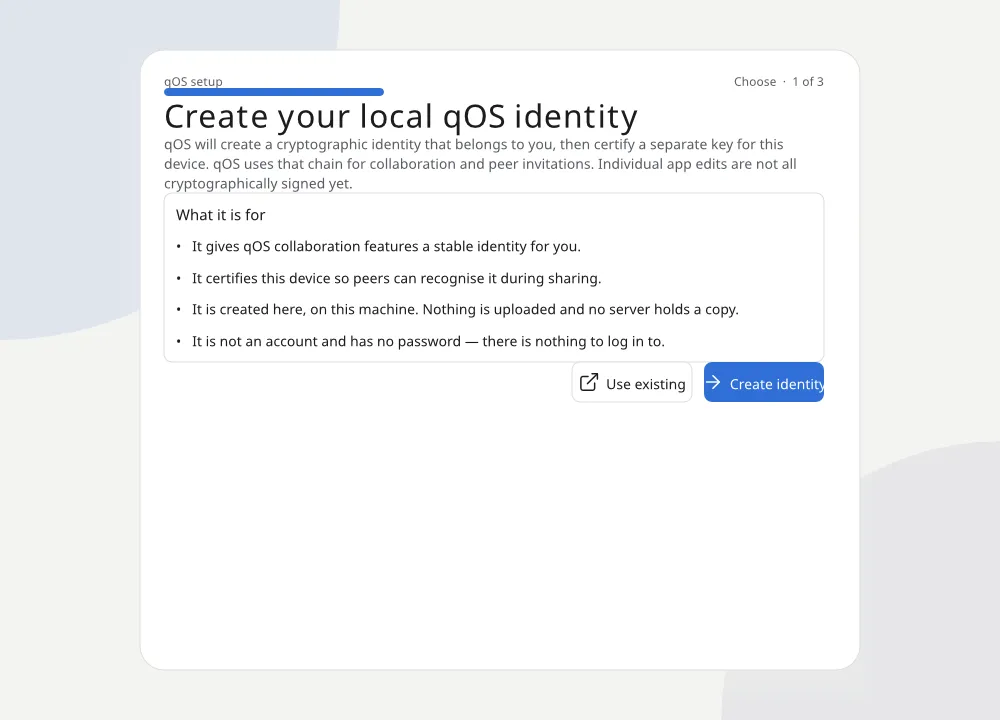
On the complete system, the installer has already collected the language, keyboard, and local-account details. First login now asks about the separate identity used for collaboration:
- Choose Set up this device to create your first identity, or Connect an existing identity and select its recovery copy.
- If this is the first device, acknowledge that losing both the device and its recovery copy loses the identity.
- Save the encrypted recovery copy somewhere other than this computer, then open it from that location to make sure the copy is readable.
- Start the three-screen tour or skip it. Search for Desktop tour later to reopen it.
There is no vendor account to create. Your local login remains separate from the identity that signs shared changes.
Your first five minutes
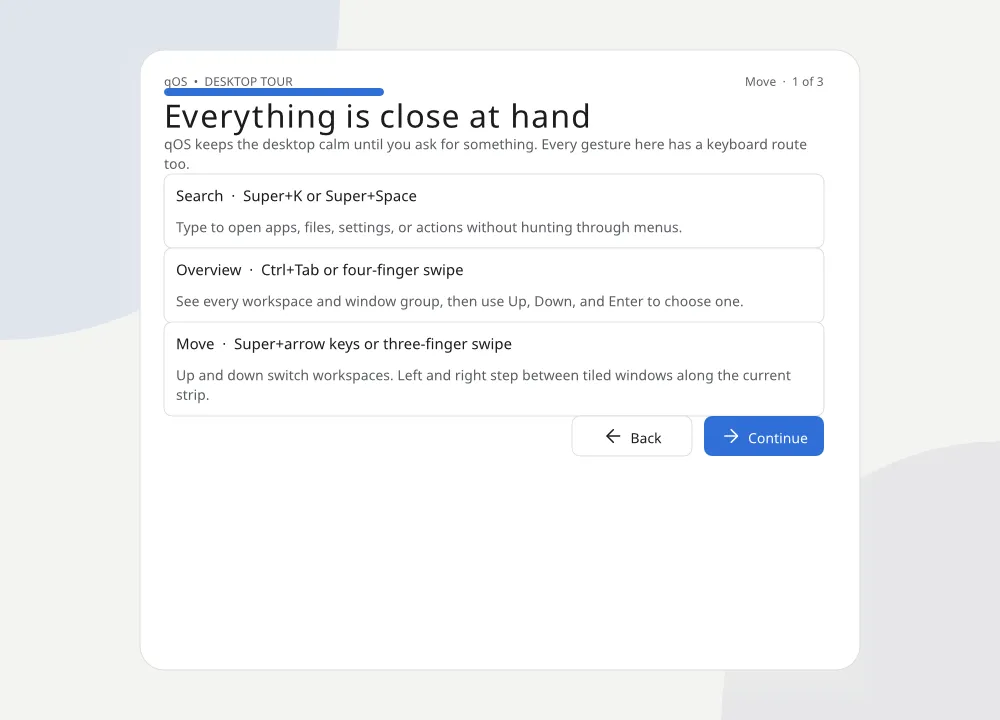
- Open search with
Super+K, type Notes, and open it. - Write a short test note.
- Open Files beside it and drag a disposable file onto the note.
- Search for a phrase from the note with
Super+K. - Open History, undo the last change, and redo it.
This introduces search, the side-by-side window layout, and History without putting important work at risk. You can leave workspaces and sharing alone until you need them.
Use the applications you already have
- On an existing Linux installation, installed applications appear in search beside Tilo applications.
- On the complete system, install normal Linux applications through Software or a distribution container.
- For Windows applications, use the compatibility guide to choose Wine, Proton, or a side-by-side Windows VM for each app.
Any file-copy choices you made outside the installer remain separate. Nothing is copied automatically during installation. Windows application compatibility explains the three routes without requiring you to choose one globally.
Leave or switch back
- Shut down or close the virtual machine.
- Restart a live session and remove the USB drive.
- From a Linux desktop session, sign out and choose the previous desktop at the sign-in screen.
- On a dual-boot computer, restart and choose the other operating system.
- On the complete system, Settings → Updates can start the previous system image without rewinding personal data.
For package removal, disk changes and recovery, use Installation and recovery.
If something does not work
Do not repeat an operation when files or a disk may be at risk. Write down the message shown on screen, then open Troubleshooting and protect the work before trying to repair the system.